

1. Select the documents
Open the case and go to Documents. Tick the documents you need translated and choose Request Translation.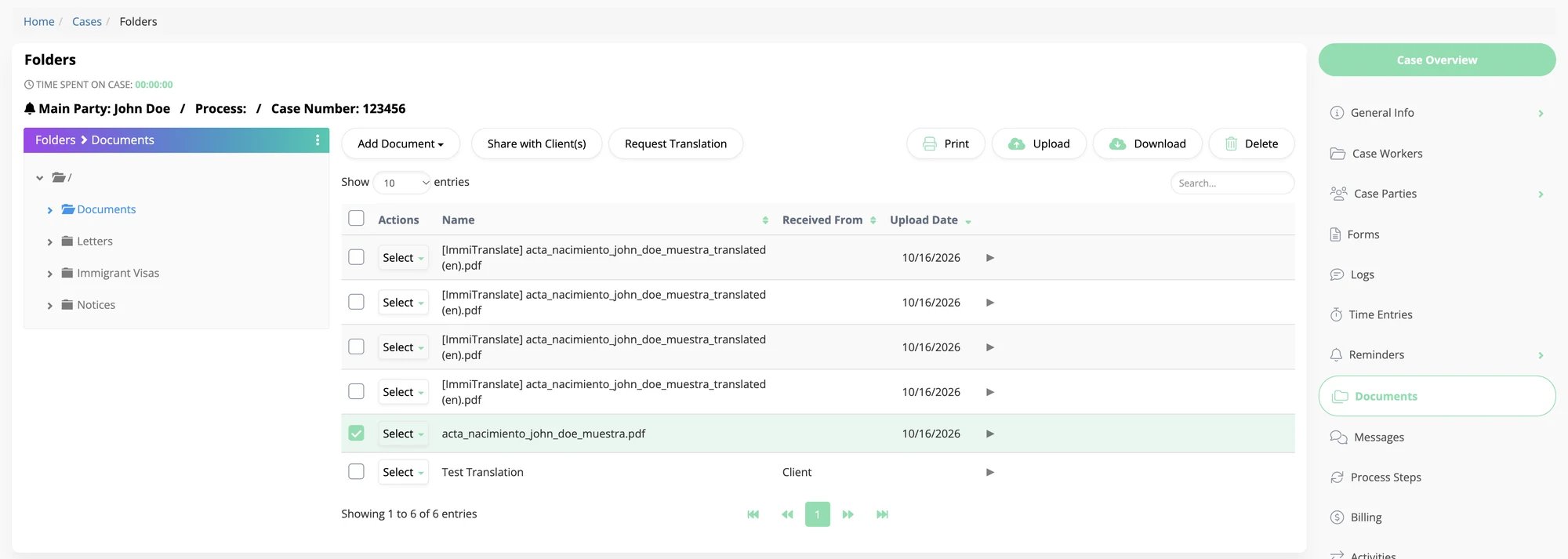
A case's documents, with one file selected
2. Send the request
The request takes three short steps.1
File Upload
Check the list of documents and choose Upload. eimmigration sends them to ImmiTranslate. When it says the upload was successful, choose Next.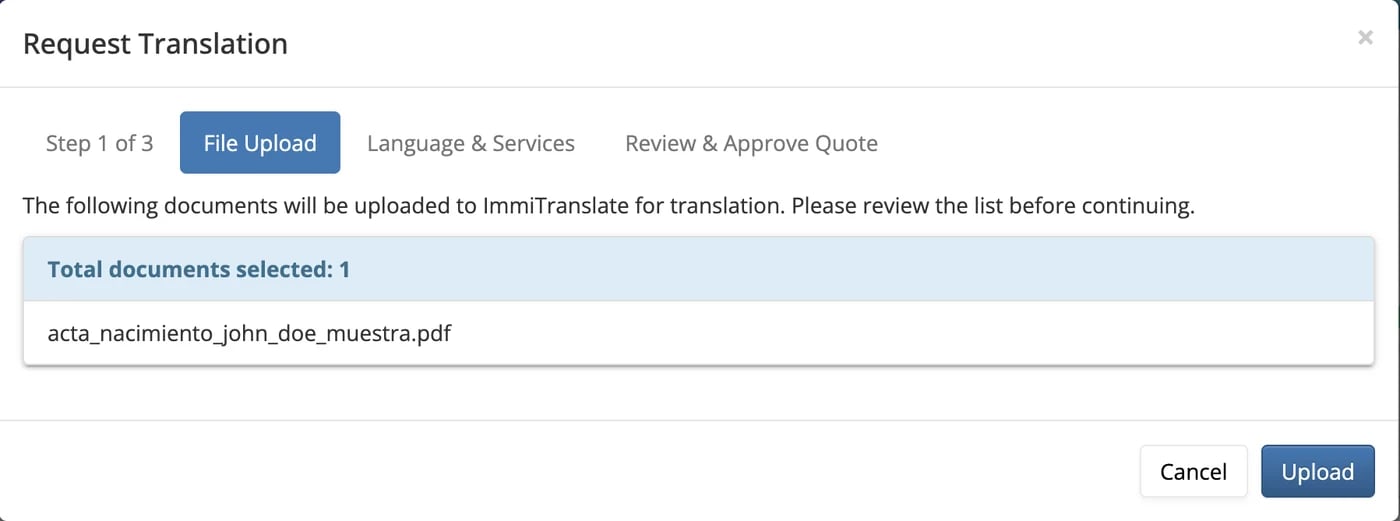
2
Language & Services
Choose the Source Language of the documents and the Target Language you need. Turn on Notarization if you need a notarized copy of the translation. Physical copies can’t be requested from eimmigration yet.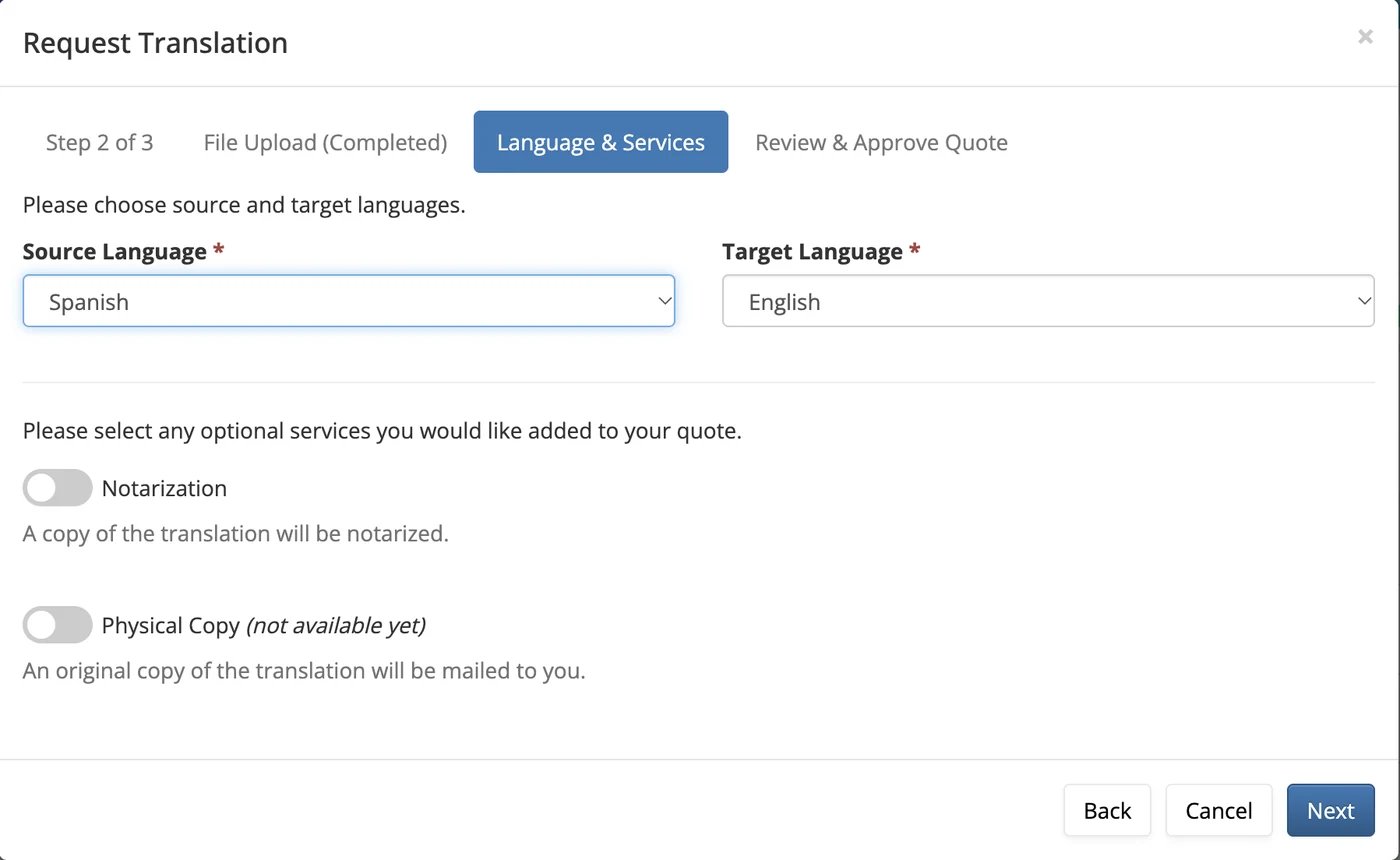
3
Review & Approve Quote
Check the summary and choose Create Quote.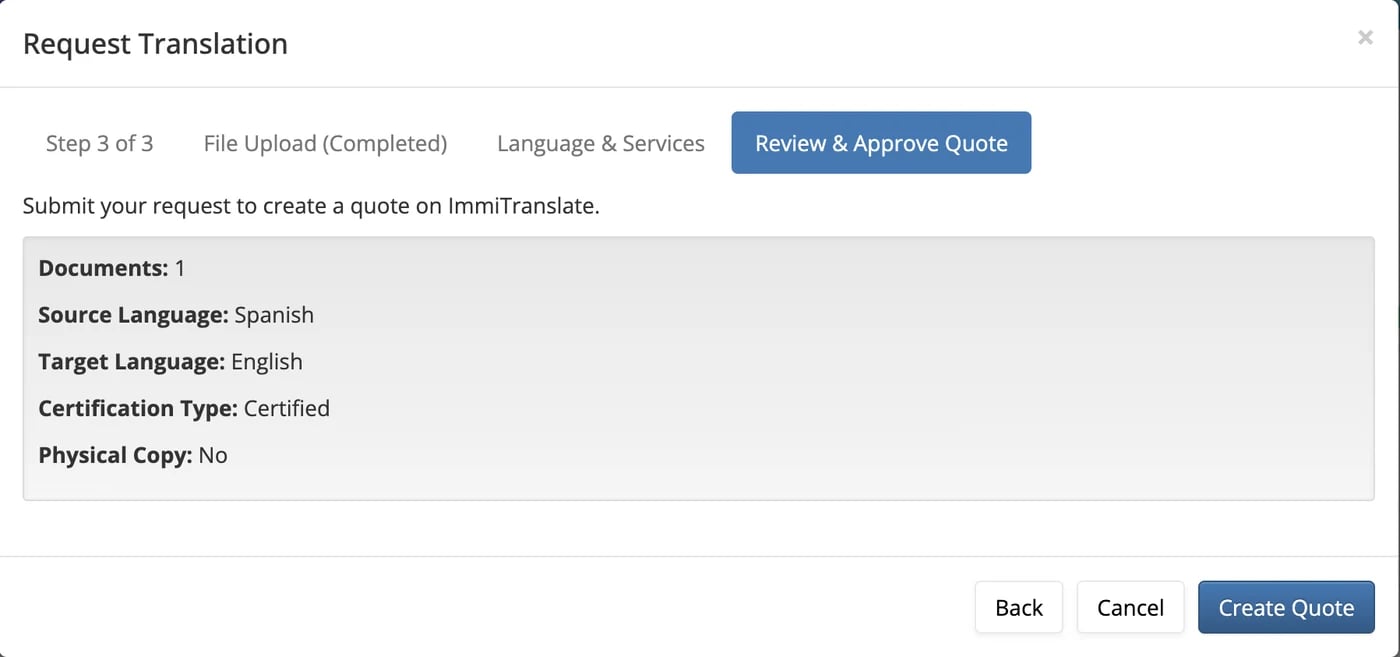
3. Approve the quote on ImmiTranslate
eimmigration confirms that the quote was created, gives the request a job request number, and shows a link to the quote.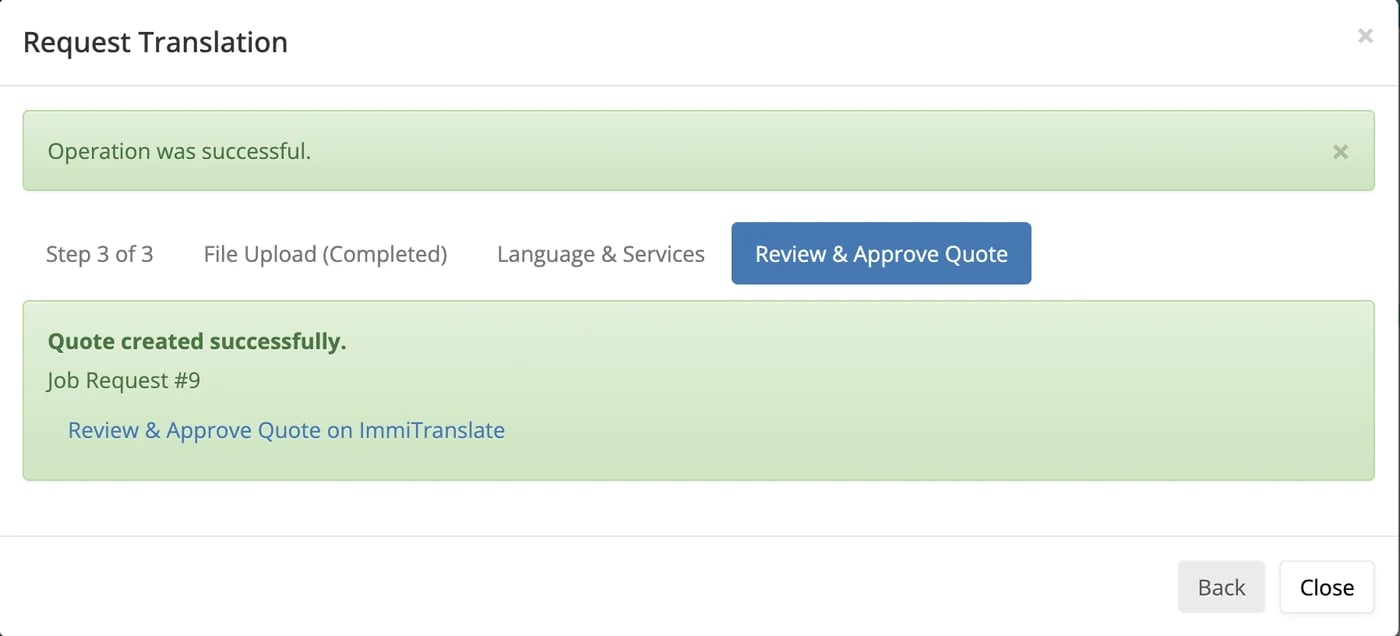
The quote has been created
Nothing is translated or charged until the quote is approved. If you close the window, open the quote again from Job Requests in eimmigration or from Quotes in your ImmiTranslate account.
4. Follow the request
Every request is listed on the Job Requests page in eimmigration with its quote number, case number, language pair and status. ImmiTranslate updates the status as the order moves along, and Review opens it on ImmiTranslate.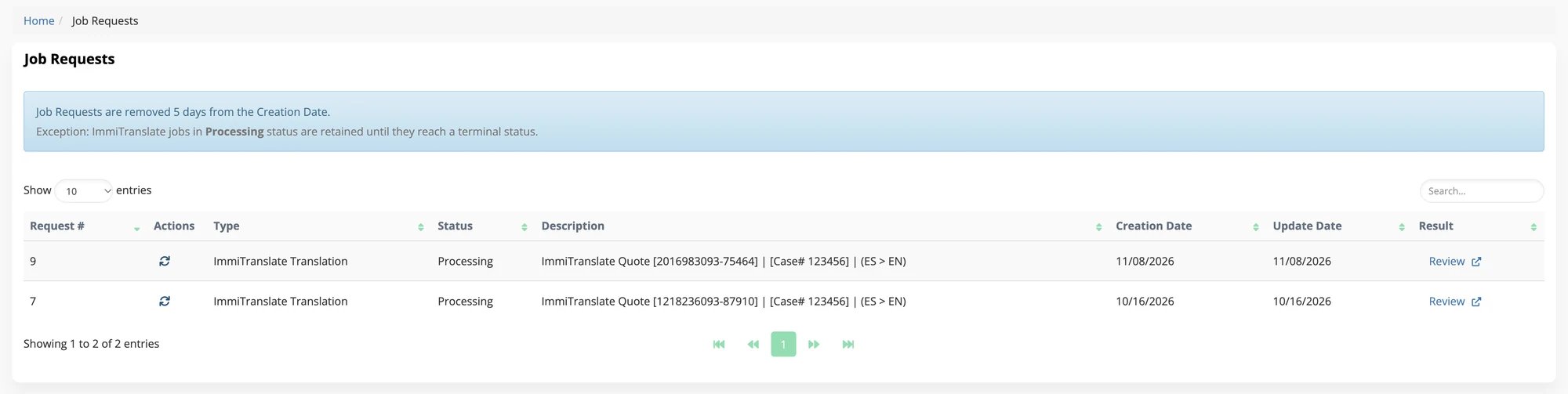
Job Requests
5. Get the translation
When the translation is complete, eimmigration saves it to the case’s Documents, next to the original, with[ImmiTranslate] in front of the file name.
You can also download it, or request a revision, from the order in your ImmiTranslate account.